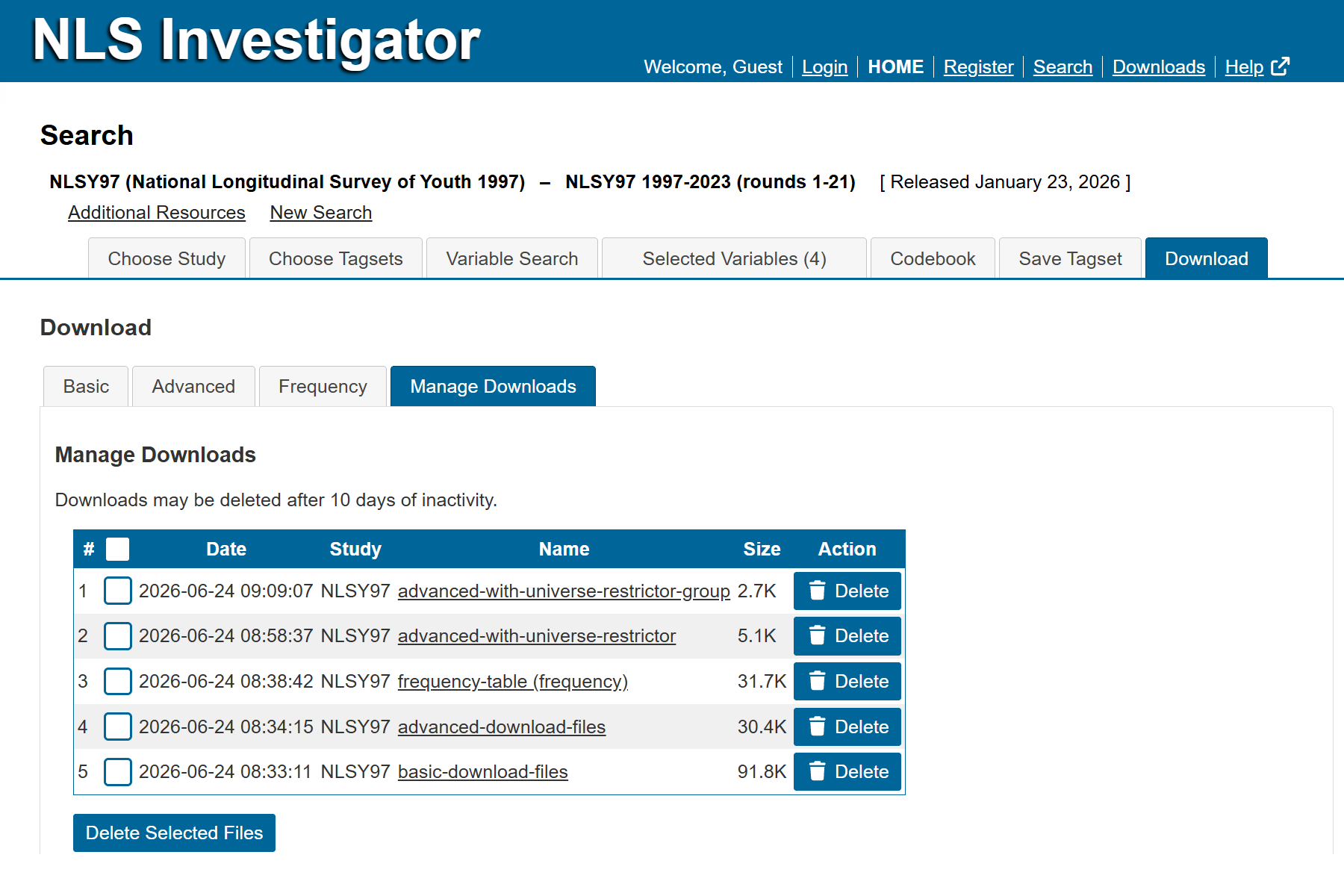
The Manage Downloads sub-tab, the fourth option within the Download tab, displays the current extract status and links to completed extracts ready for download.
The following image shows a table of available downloads containing both data extracts and frequency tables. For each file, the table provides the creation date, study (cohort), filename (which serves as the download link), and file size, allowing users to easily identify and access previously generated outputs from their session. To remove an item, click Delete in its row, or select multiple items using the checkboxes in the left column and click Delete Selected Files below the table.
Next: Account Features
Previous: Frequency / Table
Quick links: Table of Contents | Glossary of NLS Terms