The Selected Variables tab, located fourth from the left, displays a list of the tagged variables in your tagset.
In the following example, the NLSY97 is the selected study and variable S7683200 - WHAT IS CURRENT HIGHEST GRADE EVER COMPLETED? has been tagged in the Variable Search tab.
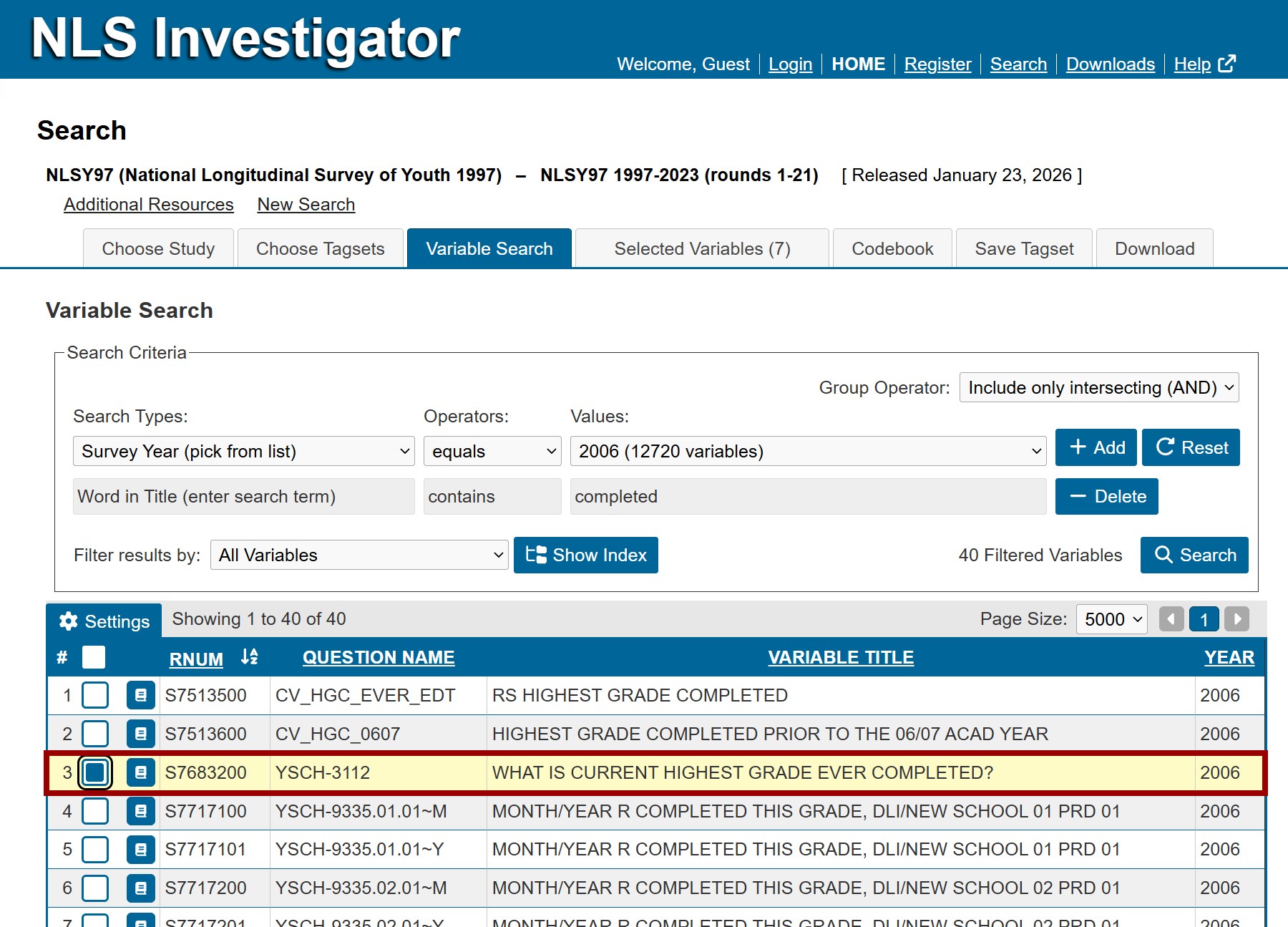
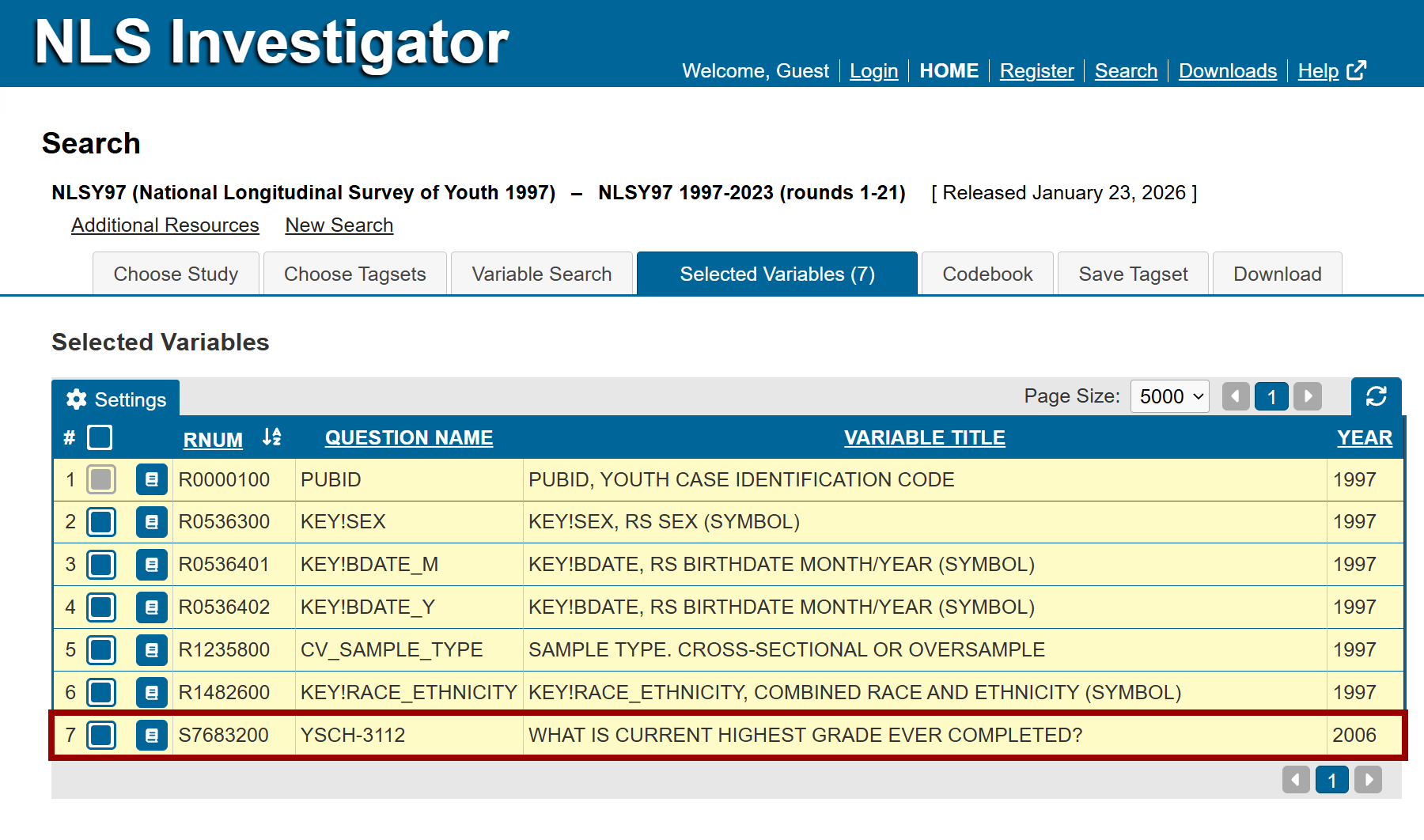
When you navigate to the Selected Variables tab, seven variables are displayed:
- Six variables are automatically preselected in the NLS Investigator.
- One required variable that cannot be removed:
- R0000100 - PUBID
- Five recommended variables that can be removed, if desired:
- R0536300 - Sex
- R0536401 - Birthdate Month
- R0536402 - Birthdate Year
- R1235800 - Sample Type
- R1482600 - Race / Ethnicity
- One required variable that cannot be removed:
- The seventh variable is S7683200 - WHAT IS CURRENT HIGHEST GRADE EVER COMPLETED?, the education variable that was tagged in the Variable Search tab.
Recommended variables and variables selected during the search process can be removed from the variable list before saving or downloading the tagset. To remove a variable, deselect the checkbox in the leftmost column of the variable's row (marker A).
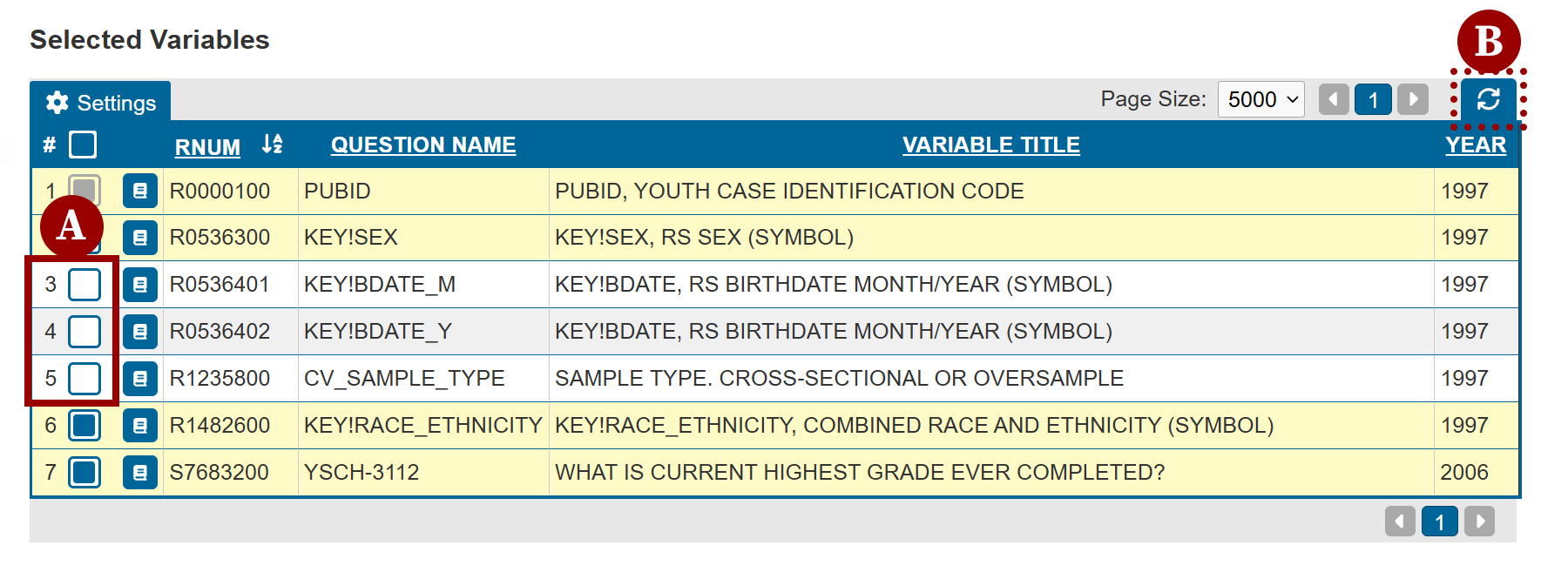
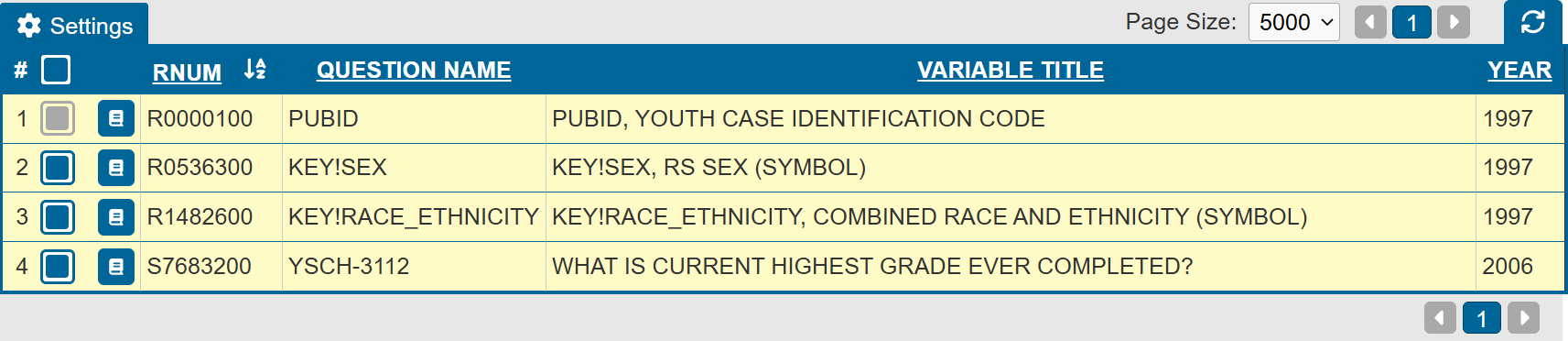
After deselecting the variable, click the Refresh List icon (marker B in the image above), located next to the paging controls, to update and display the revised tagset.
Additional notes
The Selected Variables tab has many of the same features as the Variable Search tab.
- By default, the tab displays the list of tagged variables with RNUM, Question Name (QNAME), Variable Title, and Year.
- Through the Settings menu, you can display additional variable characteristics, view data for a specific respondent, and navigate between respondents using the Show Data and Navigation Controls features described on the Customize Search Results page.
- A variable's codebook information can be accessed through either the Codebook Preview or the Codebook tab.
Investigator limits extracts to 15,000 variables max
Research requiring more than 15,000 variables will need to divide variables into multiple tagsets for saving and downloading purposes.
Next: Codebook
Previous: Codebook Preview
Quick links: Table of Contents | Glossary of NLS Terms